> ## Documentation Index
> Fetch the complete documentation index at: https://docs.deepsmith.ai/llms.txt
> Use this file to discover all available pages before exploring further.
# Managing Webhooks
> Set up and manage webhooks from the DeepSmith platform
Webhooks are managed from **Settings > Webhooks** in your workspace.
## Creating a webhook
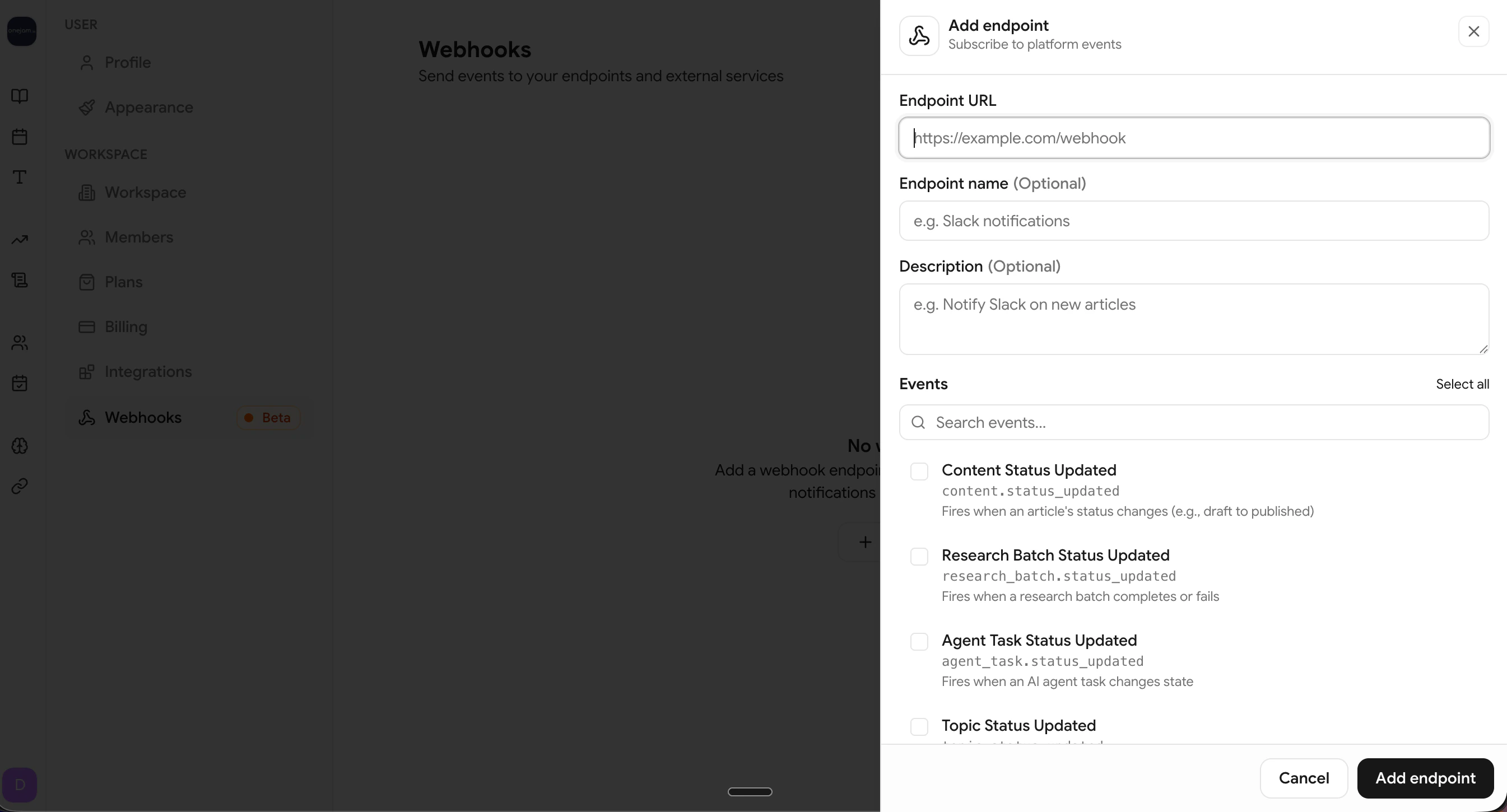
Go to **Settings > Webhooks** and click **Add Webhook**.
Fill in the webhook details:
* **URL** — The HTTPS endpoint that will receive deliveries
* **Name** — A friendly label (e.g., "Production CMS Sync")
* **Description** — What this webhook is used for (optional)
Select one or more event types to subscribe to. See the [Event Catalog](/webhooks/event-catalog) for details on each event.
After saving, your **signing secret** is displayed once. Copy it and store it securely — you'll need it to [verify signatures](/webhooks/security).
 The signing secret is only shown in full when you first create the webhook. After that, only the last 4 characters are visible. If you lose it, delete the webhook and create a new one.
***
## Viewing your webhooks
The webhooks list shows each endpoint's status, subscribed events, and error rate at a glance.
The signing secret is only shown in full when you first create the webhook. After that, only the last 4 characters are visible. If you lose it, delete the webhook and create a new one.
***
## Viewing your webhooks
The webhooks list shows each endpoint's status, subscribed events, and error rate at a glance.
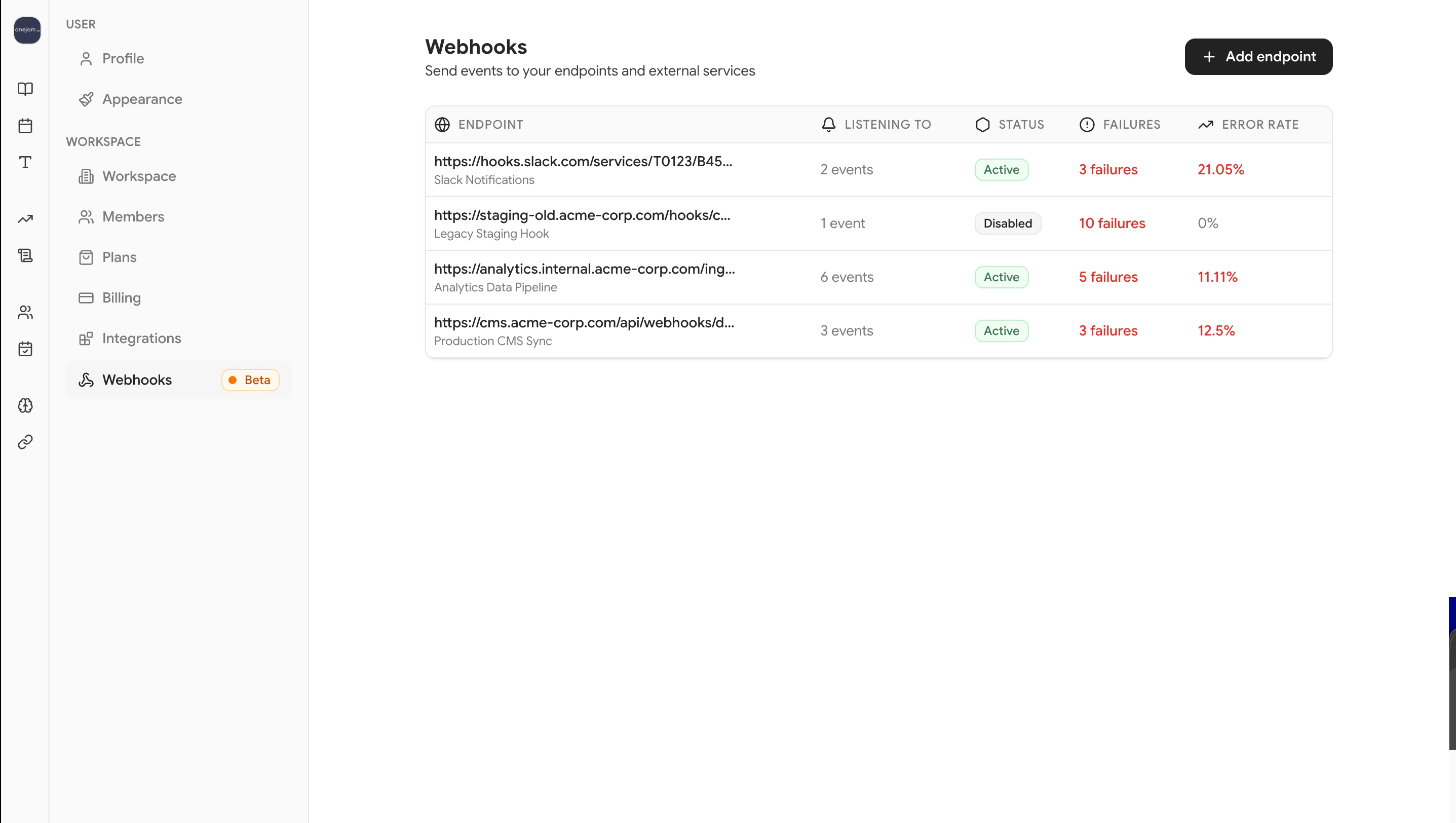 | Field | Description |
| ------------------------ | --------------------------------------------------------- |
| **Status** | `ACTIVE` or `DISABLED` |
| **Events** | Which event types the webhook is subscribed to |
| **Error rate** | Percentage of failed deliveries over the last 7 days |
| **Consecutive failures** | Current streak of failed deliveries (auto-disables at 10) |
***
## Editing a webhook
Click on any webhook to update its URL, name, description, or event subscriptions.
| Field | Description |
| ------------------------ | --------------------------------------------------------- |
| **Status** | `ACTIVE` or `DISABLED` |
| **Events** | Which event types the webhook is subscribed to |
| **Error rate** | Percentage of failed deliveries over the last 7 days |
| **Consecutive failures** | Current streak of failed deliveries (auto-disables at 10) |
***
## Editing a webhook
Click on any webhook to update its URL, name, description, or event subscriptions.
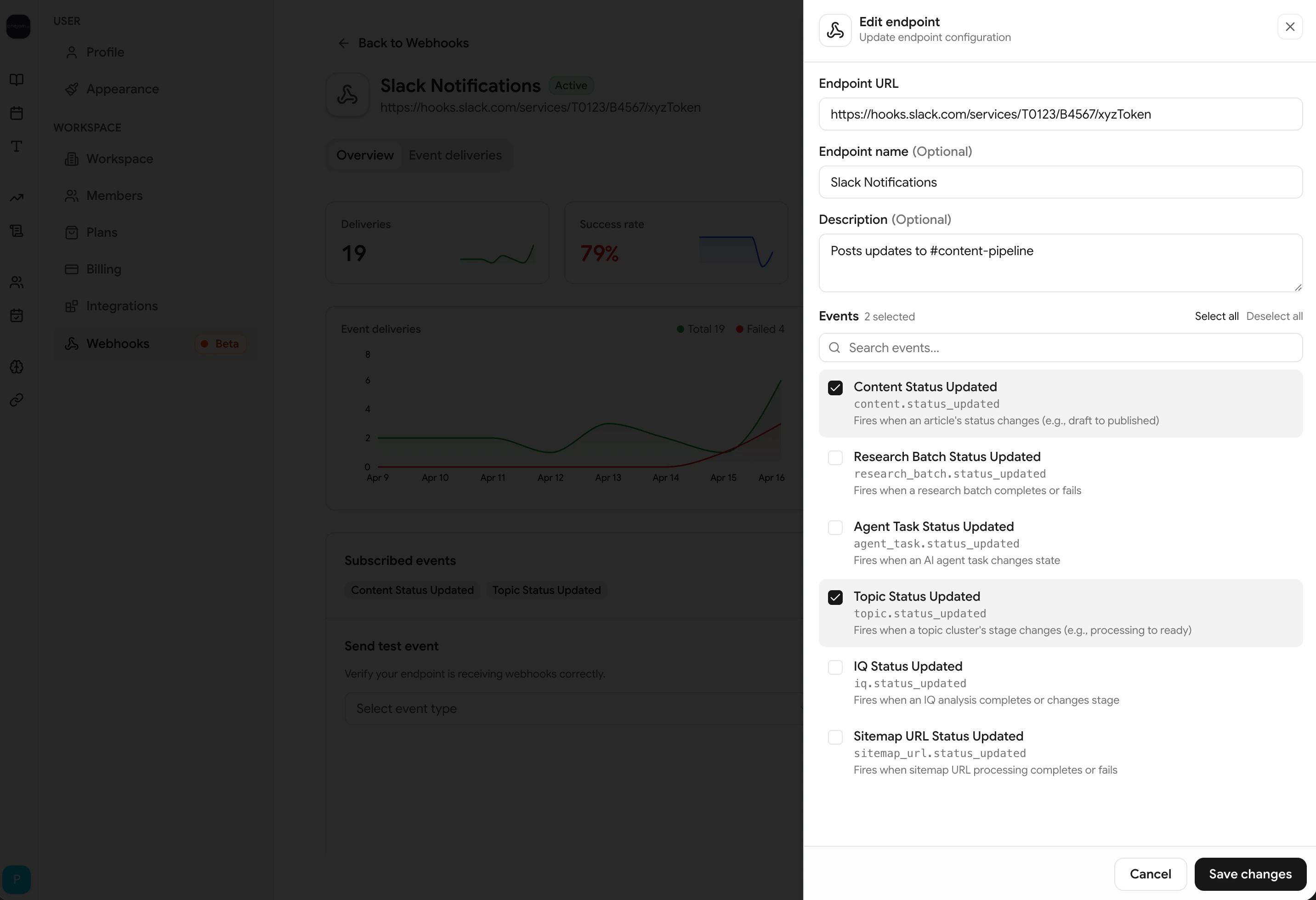 When updating events, the entire subscription list is replaced. Make sure all the events you want are selected.
***
## Enabling and disabling
Toggle a webhook's status directly from the webhook detail page:
* **Enable** — Reactivates the webhook and resets the failure counter to 0
* **Disable** — Pauses all deliveries until re-enabled
Use disable instead of delete if you want to temporarily pause deliveries. You can re-enable at any time without losing your configuration or delivery history.
***
## Deleting a webhook
Click **Delete** to remove a webhook. Any pending deliveries in the queue will be skipped.
Deletion cannot be undone. If you might need the webhook again, disable it instead.
***
## Sending a test event
Before going live, verify your endpoint by sending a test delivery.
Go to **Settings > Webhooks** and click on the webhook you want to test.
Choose an event type and click **Send Test Event**.
The test delivery appears in the delivery log with a **Test** badge. Confirm your server received and processed it.
When updating events, the entire subscription list is replaced. Make sure all the events you want are selected.
***
## Enabling and disabling
Toggle a webhook's status directly from the webhook detail page:
* **Enable** — Reactivates the webhook and resets the failure counter to 0
* **Disable** — Pauses all deliveries until re-enabled
Use disable instead of delete if you want to temporarily pause deliveries. You can re-enable at any time without losing your configuration or delivery history.
***
## Deleting a webhook
Click **Delete** to remove a webhook. Any pending deliveries in the queue will be skipped.
Deletion cannot be undone. If you might need the webhook again, disable it instead.
***
## Sending a test event
Before going live, verify your endpoint by sending a test delivery.
Go to **Settings > Webhooks** and click on the webhook you want to test.
Choose an event type and click **Send Test Event**.
The test delivery appears in the delivery log with a **Test** badge. Confirm your server received and processed it.
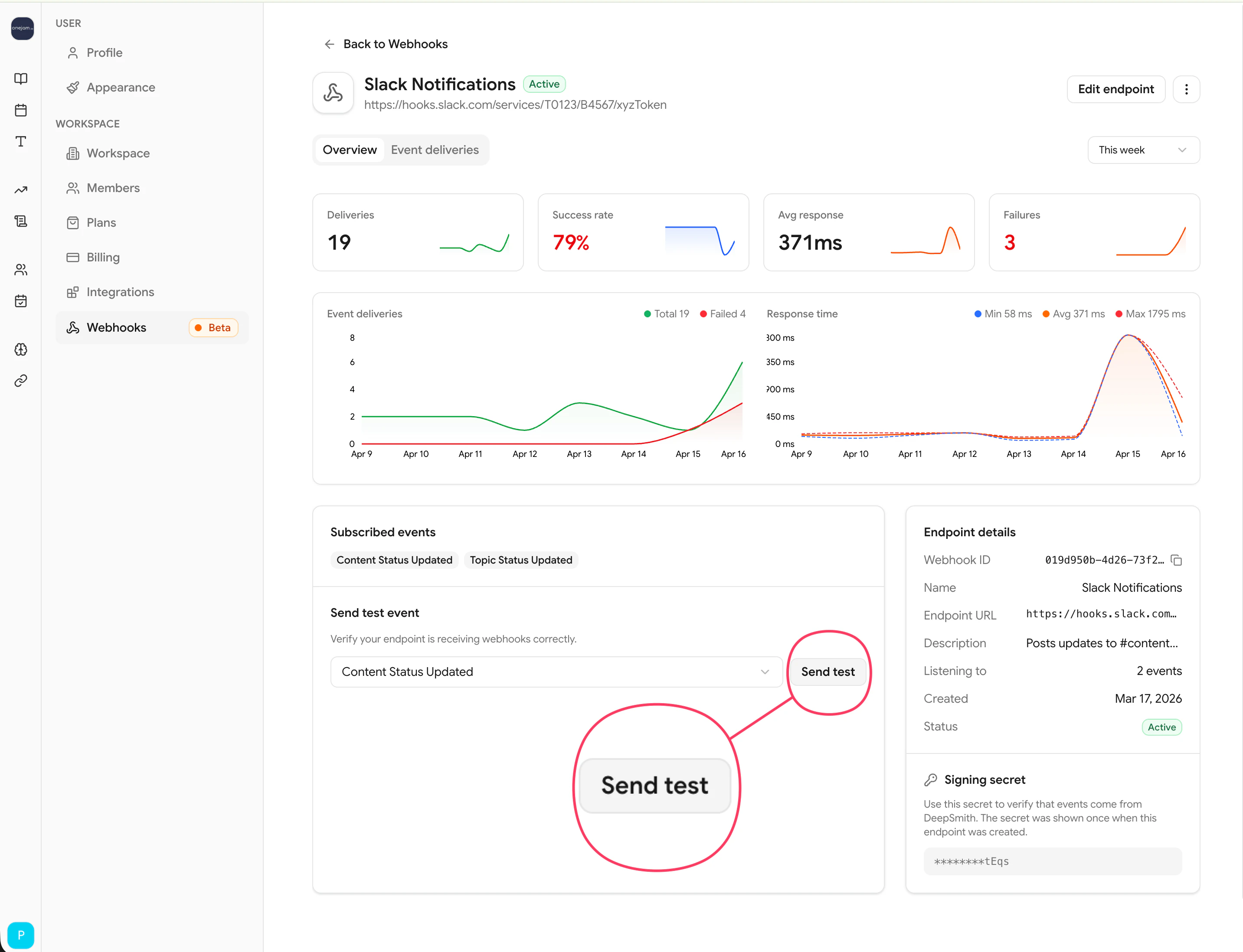 Test deliveries:
* Have `is_test: true` in the payload
* Are marked with a **Test** badge in the delivery history
* Work even when the webhook is **disabled**
* Use sample payloads with zeroed UUIDs (`00000000-0000-0000-0000-000000000000`)
***
## Webhook statuses
| Status | Description |
| ---------- | -------------------------------------------------------------------------------- |
| `ACTIVE` | Receiving deliveries normally |
| `DISABLED` | Paused — either manually disabled or auto-disabled after 10 consecutive failures |
When a webhook reaches 10 consecutive failures, DeepSmith automatically disables it to protect your endpoint. Re-enable it from the platform after fixing the underlying issue.
Test deliveries:
* Have `is_test: true` in the payload
* Are marked with a **Test** badge in the delivery history
* Work even when the webhook is **disabled**
* Use sample payloads with zeroed UUIDs (`00000000-0000-0000-0000-000000000000`)
***
## Webhook statuses
| Status | Description |
| ---------- | -------------------------------------------------------------------------------- |
| `ACTIVE` | Receiving deliveries normally |
| `DISABLED` | Paused — either manually disabled or auto-disabled after 10 consecutive failures |
When a webhook reaches 10 consecutive failures, DeepSmith automatically disables it to protect your endpoint. Re-enable it from the platform after fixing the underlying issue.